


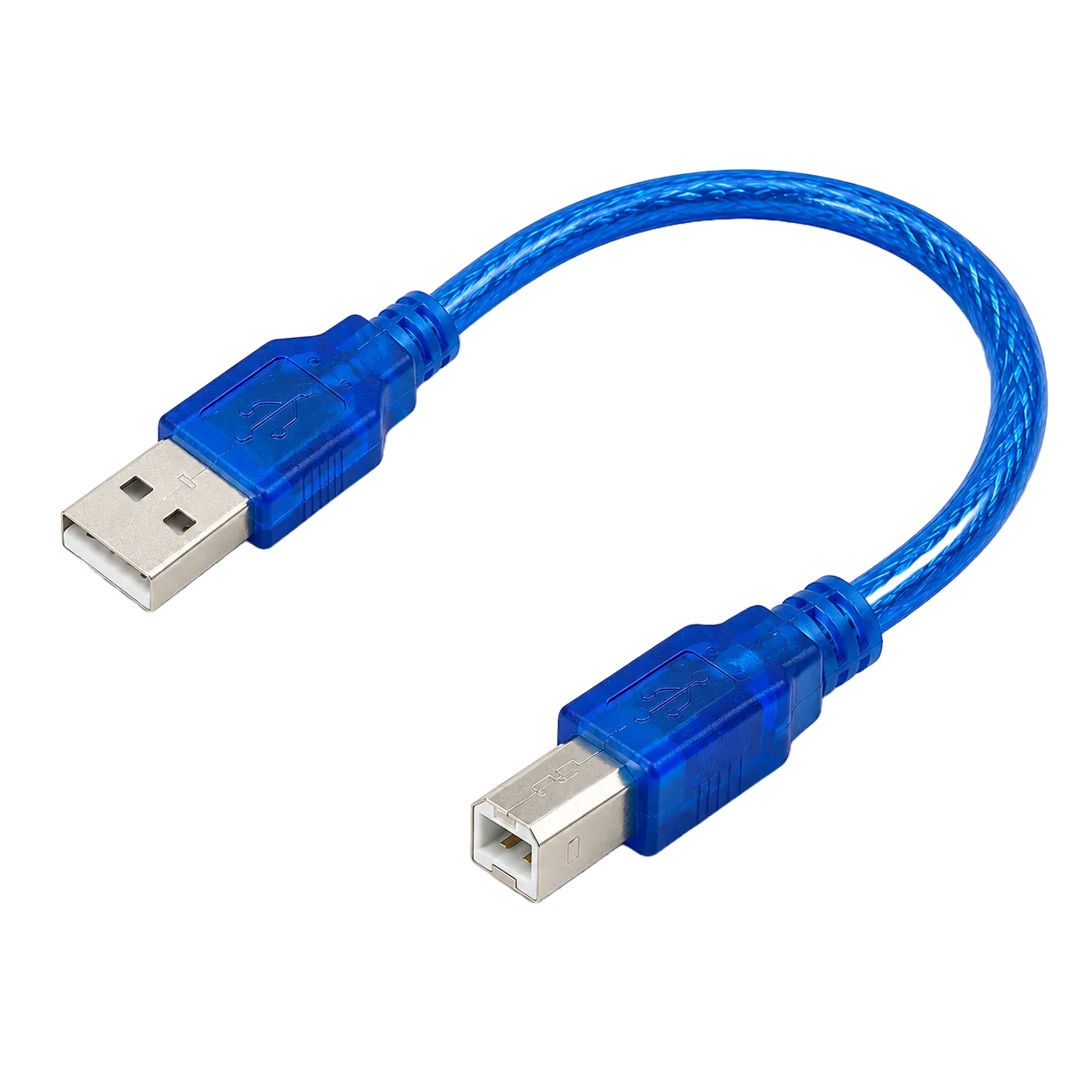
Arduino Uno USB Cable – Type A to Type B (Blue)
The Arduino Uno USB Cable – Type A to Type B (Blue) is a USB connection cable designed for programming, serial communication and powering compatible Arduino development boards. Featuring a USB Type-A male connector on one end and a USB Type-B male connector on the other, it provides a convenient connection between an Arduino Uno R3-compatible board and a computer.
Key Features:
- USB Type-A Male to USB Type-B Male cable
- Suitable for Arduino Uno R3-compatible boards
- Compatible with Arduino Mega 2560 boards with USB Type-B ports
- Intended for uploading programs through Arduino IDE
- Supports USB serial communication when the cable and board are functioning correctly
- Supplies USB power to compatible development boards
- Translucent blue cable covering
- Plug-and-play physical connection
- Useful for Arduino programming and debugging
- Also suitable for compatible printers and USB Type-B peripherals
- Ideal for electronics students, hobbyists and robotics projects
Package Includes: 1 × Arduino Uno USB Cable – Type A to Type B (Blue).
Important: This cable is designed for devices with a USB Type-B socket. It does not connect directly to USB-C or Micro-USB ports. Cable length should be confirmed before ordering.
Buy the Arduino Uno USB Cable online from Yagobotix with shipping across India and local delivery options in Surat.
Arduino Uno USB Cable – Type A to Type B (Blue)
1. What Is an Arduino Uno USB Cable?
The Arduino Uno USB Cable is a USB Type-A to Type-B connection cable used to connect compatible Arduino development boards to a computer.
It features a rectangular USB Type-A male connector on one end and a square-shaped USB Type-B male connector on the other.
This version has a translucent blue cable covering and blue connector housings.
The cable is commonly used for uploading Arduino programs, exchanging serial data and supplying USB power to compatible development boards.
It can also be used with other devices that accept standard USB Type-B connections.
2. What Can You Build With an Arduino Uno USB Cable?
The Arduino Uno USB Cable supports projects such as:
- Arduino Uno programming
- Arduino Mega programming
- Arduino IDE experiments
- Arduino LED blinking projects
- Sensor data monitoring
- USB serial communication
- Robotics development
- DIY electronics experiments
- Arduino debugging
- Serial Monitor demonstrations
- Basic automation projects
- STEM and educational projects
- Computer-controlled electronics
- Breadboard circuit testing
- Arduino firmware uploads
The cable serves as the connection between the computer and a compatible development board.
3. Who Is It For?
The Arduino Uno USB Cable is suitable for:
- School students
- Engineering students
- Arduino beginners
- Robotics enthusiasts
- DIY electronics makers
- Embedded system developers
- STEM educators
- Electronics hobbyists
- Technical laboratories
- Arduino training centres
It is a useful accessory for anyone learning Arduino programming and electronics prototyping.
4. How Does an Arduino Uno USB Cable Work?
The cable connects the USB port of a computer to a compatible Arduino development board.
USB Type-A Connector
The Type-A connector is inserted into a compatible computer USB-A port or powered USB hub.
USB Type-B Connector
The Type-B connector is inserted into the USB-B socket on an Arduino Uno R3 or another compatible device.
Programming
When the Arduino IDE uploads a sketch, the computer communicates with the board through its USB interface.
The board’s USB communication circuitry supports the upload process.
Serial Communication
The cable also allows supported Arduino boards to exchange serial data with a computer.
This enables monitoring of sensor readings, troubleshooting and debugging through the Arduino IDE Serial Monitor.
USB Power
The cable can deliver USB power from a suitable computer or USB power supply to a compatible development board.
The available current depends on the USB source, cable quality and board power requirements.
Working Principle
Computer USB-A Port → USB Cable → Arduino USB-B Port → Board USB Interface → Microcontroller
5. Technical Specifications
| Specification | Details |
|---|---|
| Product Type | Arduino USB Cable |
| Connector A | USB Type-A Male |
| Connector B | USB Type-B Male |
| Connection Type | USB A-to-B |
| Cable Colour | Blue |
| Connector Housing | Translucent Blue |
| Cable Shape | Flexible |
| Power Delivery | Standard USB bus power |
| Data Communication | Standard USB connection when supported |
| Arduino Uno R3 Compatibility | Yes |
| Arduino Mega 2560 Compatibility | Yes |
| Arduino Uno R4 Compatibility | No, uses USB-C |
| Arduino Nano Mini-USB Compatibility | No |
| Cable Length | To be confirmed |
| USB Version | To be confirmed |
| Maximum Data Rate | To be confirmed |
| Quantity | 1 Piece |
Important Technical Notes
- The cable connects USB Type-A and USB Type-B ports.
- It is not a USB-C cable.
- It is not a Micro-USB cable.
- The cable does not contain an Arduino microcontroller.
- Arduino programming requires a compatible development board and software.
- The board may require appropriate USB drivers, depending on its USB-to-serial interface.
- This is a USB connection cable, not a standalone voltage regulator.
- Cable length and USB data-transfer performance should be verified on the actual stock.
- Use a suitable USB supply when powering external electronic circuits.
6. Arduino Uno USB Cable Connector Pinout
A standard USB Type-A to Type-B cable uses four electrical connections.
| USB Contact | Function |
|---|---|
| VBUS | USB power |
| D− | USB differential data negative |
| D+ | USB differential data positive |
| GND | Ground |
USB Power
VBUS provides USB bus power from the connected host or supply.
Data Connections
D+ and D− carry USB data signals.
Ground
GND provides the electrical return connection.
Important
The USB connectors are keyed and should be inserted only in the correct orientation.
Do not force a USB Type-B plug into a USB-C, Micro-USB or other incompatible socket.
The connector pinout is provided for understanding; normal users do not need to wire these pins manually.
7. How to Connect an Arduino Uno USB Cable
Required Components
- 1 × Arduino Uno USB Cable
- 1 × Arduino Uno R3-Compatible Board
- Computer with USB Type-A port
- Arduino IDE
Connection Steps
- Place the Arduino Uno on a non-conductive surface.
- Insert the USB Type-B connector into the Arduino’s USB-B socket.
- Insert the USB Type-A connector into the computer.
- Check whether the Arduino’s power LED turns on.
- Open Arduino IDE.
- Select the appropriate Arduino board.
- Select the correct communication port.
- Open or create an Arduino sketch.
- Click Upload.
- Confirm successful program uploading.
Troubleshooting
If the board is not detected:
- Check that the USB connectors are fully inserted.
- Try another computer USB port.
- Check the board selection.
- Check the selected serial port.
- Install the appropriate USB-to-serial driver if required.
- Test the cable with another compatible device.
- Verify that the cable supports data communication.
8. Arduino Example Code – LED Blink
Use the Arduino Uno USB Cable to upload a basic LED blinking program.
Required Components
- 1 × Arduino Uno R3-Compatible Board
- 1 × Arduino Uno USB Cable
- Computer
- Arduino IDE
Arduino Code
void setup() {
  pinMode(LED_BUILTIN, OUTPUT);
}

void loop() {
  digitalWrite(LED_BUILTIN, HIGH);
  delay(1000);

  digitalWrite(LED_BUILTIN, LOW);
  delay(1000);
}
How to Test
- Connect the Arduino Uno to the computer using the USB cable.
- Open Arduino IDE.
- Select Arduino Uno as the board.
- Select the correct port.
- Paste the code.
- Click Upload.
- Observe the onboard LED blinking.
Expected Result
The onboard LED turns ON for one second and OFF for one second repeatedly.
The example demonstrates successful programming and basic digital output control.
9. Beginner Project: Read Arduino Sensor Data on a Computer
Project Objective
Use the Arduino Uno USB Cable to transfer data from an Arduino board to the Arduino IDE Serial Monitor.
Components Required
- 1 × Arduino Uno
- 1 × Arduino Uno USB Cable
- Computer with Arduino IDE
Arduino Code
void setup() {
  Serial.begin(9600);
}

void loop() {
  Serial.println("Hello from Arduino!");

  delay(1000);
}
Project Working
- Connect the Arduino board through the USB cable.
- Upload the program using Arduino IDE.
- Open Serial Monitor.
- Set the baud rate to 9600.
- Observe the message appearing every second.
What Will Students Learn?
- Arduino IDE usage
- USB programming
- Serial communication
- Serial Monitor
- Basic debugging
- Microcontroller communication
- Computer-to-board connections
This is a simple first project for Arduino beginners.
10. Related Products
Complete your Arduino programming setup with:
- Arduino Uno R3 Compatible Board
- Arduino Mega 2560 Board
- GL-12 840 Points Solderless Breadboard
- Jumper Wires
- 5mm Red LED
- 5mm Green LED
- Assorted LED Pack
- Resistors
- Tactile Push Button Switch
- DHT11 Temperature and Humidity Sensor
- HC-SR04 Ultrasonic Sensor
- IR Obstacle Avoidance Sensor
- HC-05 Bluetooth Module
- TM1637 4-Digit Seven Segment Display
- 16×2 LCD Display
11. Related Tutorials
Explore these Arduino learning topics:
- How to Connect Arduino Uno to a Computer
- How to Upload Code to Arduino Uno
- Arduino Uno USB Cable Type Explained
- USB Type-A vs USB Type-B
- How to Install Arduino IDE
- How to Select an Arduino COM Port
- Arduino Uno Not Detected Troubleshooting
- How to Install CH340 USB Drivers
- Arduino LED Blink Tutorial
- How to Use Arduino Serial Monitor
- How to Read Sensor Data on a Computer
- Arduino Uno R3 vs Uno R4 USB Connections
12. Frequently Asked Questions
What is an Arduino Uno USB Cable?
It is a USB cable used to connect compatible Arduino boards to a computer for programming, communication and USB power.
Which USB cable does Arduino Uno R3 use?
Arduino Uno R3 uses a USB Type-B connector.
What connectors does this cable have?
USB Type-A Male and USB Type-B Male.
Is this cable compatible with Arduino Uno R3?
Yes.
Can I use it with an Arduino Uno R3-compatible board?
Yes, if the compatible board has a standard USB Type-B socket.
Does it support Arduino Mega 2560?
Yes, for Arduino Mega 2560 boards with a USB Type-B port.
Does it work with Arduino Uno R4?
No. Arduino Uno R4 boards use USB-C.
Can I use it with Arduino Nano?
Not with a Nano that has Mini-USB, Micro-USB or USB-C. Check the exact Nano model.
Can it upload Arduino programs?
Yes, if the cable supports USB data communication and the board and software are configured correctly.
Does the cable supply power to Arduino?
Yes, when connected to a suitable USB power source.
Can I use it for serial communication?
Yes. A compatible development board can exchange serial data with a computer through USB.
Is this a USB printer cable?
Yes, it uses the standard USB Type-A to Type-B connector arrangement commonly found on USB printer cables.
Can it connect to a printer?
Yes, if the printer has a compatible USB Type-B device port and the cable meets its requirements.
Does the cable contain a USB-to-serial converter?
No. USB communication circuitry is located on the compatible development board.
Is software included?
No. Arduino IDE is available separately.
Does this cable require a driver?
The cable itself does not require a driver. The connected board may need a suitable USB driver.
Can I connect the Type-B end to a phone?
Not directly. Most phones use USB-C or other smaller connector types.
What is the cable length?
The exact length of this product needs to be measured before publishing the specification.
What is the colour?
The cable has a translucent blue covering.
Can it be used for robotics projects?
Yes. It is useful for programming and communicating with compatible Arduino-based robotics controllers.
Can I use it as a charging cable?
It can provide standard USB power to compatible USB Type-B devices, but it is not a universal charging cable.
What should I do if Arduino IDE cannot detect my board?
Check the USB port, cable data continuity, board model, communication port and USB driver.
Where can I buy an Arduino Uno USB Cable in Surat?
You can buy the Arduino Uno USB Cable from Yagobotix with shipping across India and local delivery options in Surat.
13. What Is Included?
Package Includes:
- 1 × Arduino Uno USB Cable – Type A to Type B (Blue)
The cable has:
- USB Type-A male connector
- USB Type-B male connector
- Blue cable jacket
- Blue connector housings
Not Included:
- Arduino Uno board
- Arduino Mega board
- Computer
- USB power adapter
- Breadboard
- Other electronics components
14. Compatibility
The cable is suitable for devices with standard USB Type-B sockets.
Compatible Arduino Boards
- Arduino Uno R3
- Arduino Uno R3 Compatible Board with USB-B
- Arduino Mega 2560 with USB-B
- Other development boards featuring USB Type-B sockets
Other Compatible Devices
- USB printers with Type-B sockets
- Certain USB scanners
- USB audio interfaces with Type-B connections
- Other compatible USB-B peripherals
Not Directly Compatible With
- Arduino Uno R4 Minima
- Arduino Uno R4 WiFi
- Arduino Nano models using Mini-USB, Micro-USB or USB-C
- ESP32 boards with Micro-USB or USB-C
- USB-C-only computers without a suitable adapter
- Devices without a USB Type-B port
Compatibility Reminder
Check the physical USB connector on the device before purchasing.
Not all Arduino development boards use the same USB connector.
15. Buy Arduino Uno USB Cable Online in India
Connect and program compatible Arduino development boards with the Arduino Uno USB Cable – Type A to Type B (Blue) from Yagobotix.
Featuring USB Type-A and Type-B male connectors, a flexible blue cable and a standard USB connection interface, this accessory is useful for Arduino programming, USB serial communication and beginner electronics projects.
Whether you are uploading your first Arduino Blink program, developing a robotics project or monitoring sensor data through a computer, this USB cable is an essential accessory for compatible boards.
Why Choose Yagobotix?
- USB Type-A to Type-B cable
- Suitable for Arduino Uno R3-compatible boards
- Compatible with USB-B Arduino Mega boards
- Useful for programming and USB communication
- Blue cable covering
- Suitable for electronics learning
- Shipping across India
- Local delivery options in Surat
Delivery availability depends on location, stock and applicable order cut-off times.
Add the Arduino Uno USB Cable to your cart and start programming your next electronics project with Yagobotix!
Based on 0 reviews
Only logged in customers who have purchased this product may leave a review.
Related products
-
Breadboards, Tools & Equipment
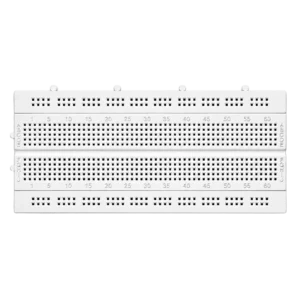
GL-12 840 Points Solderless Breadboard – White
The GL-12 840 Points Solderless Breadboard – White is a reusable, full-size electronic prototyping board designed for building and testing circuits without soldering. It features 840 connection points, standard 2.54mm hole spacing, power distribution rails and a central channel for DIP ICs.
Key Features:
- GL-12 full-size solderless breadboard
- 840 tie points for electronic circuit prototyping
- 640 component terminal points and 200 power distribution points
- Standard 2.54mm connection spacing
- Reusable connections without soldering
- Central channel for DIP integrated circuits
- Power rails for distributing supply voltage and ground
- Numbered rows and labelled columns
- White plastic body with internal metal contact clips
- Suitable for resistors, LEDs, capacitors, transistors, ICs and jumper wires
- Ideal for Arduino, ESP32, robotics and DIY electronics projects
- Suitable for students, electronics hobbyists and engineering laboratories
Package Includes: 1 × GL-12 840 Points Solderless Breadboard – White.
Note: This is a passive prototyping board and does not include a power supply. Electrical connections must be made using compatible component leads and jumper wires.
Buy the GL-12 840 Points Breadboard online from Yagobotix with shipping across India and same-day delivery or pickup available in Surat.
SKU: YGB-BRD-GL12-840-WHT -
Breadboards, Tools & Equipment
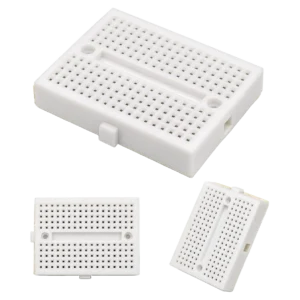
170 Points Mini Breadboard – White Solderless Breadboard
The 170 Points Mini Breadboard – White Solderless Breadboard is a compact electronic prototyping board designed for building and testing circuits without soldering. Featuring 170 connection points, a central IC channel and a lightweight white plastic body, it is ideal for Arduino projects, LED circuits, sensor experiments and DIY electronics.
Key Features:
- 170 solderless connection points
- Compact mini breadboard design
- White plastic housing
- Reusable for multiple electronics projects
- No soldering required
- Standard 2.54mm (0.1-inch) breadboard hole spacing
- Two terminal sections separated by a central channel
- Supports compatible DIP ICs
- Suitable for resistors, LEDs, transistors and jumper wires
- Designed for small Arduino prototyping circuits
- Two visible mounting holes
- Side tabs for connecting compatible mini breadboards
- No dedicated power rails
- Suitable for STEM learning and electronics experiments
- Convenient for students, beginners and DIY makers
Package Includes: 1 × 170 Points Mini Breadboard – White.
Important: This is a passive solderless breadboard. It does not include a power supply, jumper wires or electronic components.
Buy the 170 Points Mini Breadboard online from Yagobotix for Arduino, robotics and electronics prototyping projects.
SKU: YGB-BRD-MINI-170-WHT
There are no reviews yet.